How to Monitor User Activity with psacct or acct Tools

psacct or acct both are open source application for monitoring users activities on the system. These applications runs in the background and keeps track of each users activity on your system as well as what resources are being consumed.

I personally used this program in our company, we have development team where our developers continuously work on servers. So, this is one of best program to keep a eye on them. This program provides an excellent way to monitor what users are doing, what commands are they firing, how much resources are being consumed by them, how long users are active on the system. Another great feature of this program is it gives total resources consumed by services like Apache, MySQL, FTP,SSH etc.

Read AlsoMonitor Linux Commands Executed by System Users in Real-time

I think this is one of the great and must needed application for every Linux/Unix System Administrators, who wanted to keep a track of user activities on their servers/systems.

The psacct or acct package provides several features for monitoring process activities.

  1. ac command prints the statistics of user logins/logouts (connect time) in hours.
  2. lastcomm command prints the information of previously executed commands of user.
  3. accton commands is used to turn on/off process for accounting.
  4. sa command summarizes information of previously executed commands.
  5. last and lastb commands show listing of last logged in users.

Installing psacct or acct Packages

psacct or acct both are similar packages and there is not much difference between them, but the psacctpackage only available for rpm based distributions such as RHELCentOS and Fedora, whereas acct package available for distributions like UbuntuDebian and Linux Mint.

To install psacct package under rpm based distributions issue the following yum command.

# yum install psacct

To install acct package using apt-get command under Ubuntu / Debian / Linux Mint.

$ sudo apt-get install acct

OR

# apt-get install acct
Starting psacct or acct service

By default psacct service is in disabled mode and you need to start it manually under RHEL/CentOS/Fedorasystems. Use the following command to check the status of service.

# /etc/init.d/psacct status
Process accounting is disabled.

You see the status showing as disabled, so let’s start it manually using the following both commands. These two commands will create a /var/account/pacct file and start services.

# chkconfig psacct on
# /etc/init.d/psacct start
Starting process accounting:                               [  OK  ]

After starting service, check the status again, you will get status as enabled as shown below.

# /etc/init.d/psacct status
Process accounting is enabled.

Under UbuntuDebian and Mint service is started automatically, you don’t need to start it again.

Display Statistics of Users Connect Time

ac command without specifying any argument will displays total statistics of connect time in hours based on the user logins/logouts from the current wtmp file.

# ac
total     1814.03
Display Statistics of Users Day-wise

Using command “ac -d” will prints out the total login time in hours by day-wise.

# ac -d
Sep 17  total        5.23
Sep 18  total       15.20
Sep 24  total        3.21
Sep 25  total        2.27
Sep 26  total        2.64
Sep 27  total        6.19
Oct  1  total        6.41
Oct  3  total        2.42
Oct  4  total        2.52
Oct  5  total        6.11
Oct  8  total       12.98
Oct  9  total       22.65
Oct 11  total       16.18
Display Time Totals for each User

Using command “ac -p” will print the total login time of each user in hours.

# ac -p
        root                              1645.18
        tecmint                            168.96
        total     1814.14
Display Individual User Time

To get the total login statistics time of user “tecmint” in hours, use the command as.

# ac tecmint
 total      168.96
Display Day-Wise Logn Time of User

The following command will prints the day-wise total login time of user “tecmint” in hours.

# ac -d tecmint
Oct 11  total        8.01
Oct 12  total       24.00
Oct 15  total       70.50
Oct 16  total       23.57
Oct 17  total       24.00
Oct 18  total       18.70
Nov 20  total        0.18
Print All Account Activity Information

The “sa” command is used to print the summary of commands that were executed by users.

# sa
       2       9.86re       0.00cp     2466k   sshd*
       8       1.05re       0.00cp     1064k   man
       2      10.08re       0.00cp     2562k   sshd
      12       0.00re       0.00cp     1298k   psacct
       2       0.00re       0.00cp     1575k   troff
      14       0.00re       0.00cp      503k   ac
      10       0.00re       0.00cp     1264k   psacct*
      10       0.00re       0.00cp      466k   consoletype
       9       0.00re       0.00cp      509k   sa
       8       0.02re       0.00cp      769k   udisks-helper-a
       6       0.00re       0.00cp     1057k   touch
       6       0.00re       0.00cp      592k   gzip
       6       0.00re       0.00cp      465k   accton
       4       1.05re       0.00cp     1264k   sh*
       4       0.00re       0.00cp     1264k   nroff*
       2       1.05re       0.00cp     1264k   sh
       2       1.05re       0.00cp     1120k   less
       2       0.00re       0.00cp     1346k   groff
       2       0.00re       0.00cp     1383k   grotty
       2       0.00re       0.00cp     1053k   mktemp
       2       0.00re       0.00cp     1030k   iconv
       2       0.00re       0.00cp     1023k   rm
       2       0.00re       0.00cp     1020k   cat
       2       0.00re       0.00cp     1018k   locale
       2       0.00re       0.00cp      802k   gtbl
Where
  1. 9.86re is a “real time” as per wall clock minutes
  2. 0.01cp is a sum of system/user time in cpu minutes
  3. 2466k is a cpu-time averaged core usage, i.e. 1k units
  4. sshd command name
Print Individual User Information

To get the information of individual user, use the options -u.

# sa -u
root       0.00 cpu      465k mem accton
root       0.00 cpu     1057k mem touch
root       0.00 cpu     1298k mem psacct
root       0.00 cpu      466k mem consoletype
root       0.00 cpu     1264k mem psacct           *
root       0.00 cpu     1298k mem psacct
root       0.00 cpu      466k mem consoletype
root       0.00 cpu     1264k mem psacct           *
root       0.00 cpu     1298k mem psacct
root       0.00 cpu      466k mem consoletype
root       0.00 cpu     1264k mem psacct           *
root       0.00 cpu      465k mem accton
root       0.00 cpu     1057k mem touch
Print Number of Processes

This command prints the total number of processes and CPU minutes. If you see continue increase in these numbers, then its time to look into the system about what is happening.

# sa -m
sshd                                    2       9.86re       0.00cp     2466k
root                                  127      14.29re       0.00cp      909k
Print Sort by Percentage

The command “sa -c” displays the highest percentage of users.

# sa -c
 132  100.00%      24.16re  100.00%       0.01cp  100.00%      923k
       2    1.52%       9.86re   40.83%       0.00cp   53.33%     2466k   sshd*
       8    6.06%       1.05re    4.34%       0.00cp   20.00%     1064k   man
       2    1.52%      10.08re   41.73%       0.00cp   13.33%     2562k   sshd
      12    9.09%       0.00re    0.01%       0.00cp    6.67%     1298k   psacct
       2    1.52%       0.00re    0.00%       0.00cp    6.67%     1575k   troff
      18   13.64%       0.00re    0.00%       0.00cp    0.00%      509k   sa
      14   10.61%       0.00re    0.00%       0.00cp    0.00%      503k   ac
      10    7.58%       0.00re    0.00%       0.00cp    0.00%     1264k   psacct*
      10    7.58%       0.00re    0.00%       0.00cp    0.00%      466k   consoletype
       8    6.06%       0.02re    0.07%       0.00cp    0.00%      769k   udisks-helper-a
       6    4.55%       0.00re    0.00%       0.00cp    0.00%     1057k   touch
       6    4.55%       0.00re    0.00%       0.00cp    0.00%      592k   gzip
       6    4.55%       0.00re    0.00%       0.00cp    0.00%      465k   accton
       4    3.03%       1.05re    4.34%       0.00cp    0.00%     1264k   sh*
       4    3.03%       0.00re    0.00%       0.00cp    0.00%     1264k   nroff*
       2    1.52%       1.05re    4.34%       0.00cp    0.00%     1264k   sh
       2    1.52%       1.05re    4.34%       0.00cp    0.00%     1120k   less
       2    1.52%       0.00re    0.00%       0.00cp    0.00%     1346k   groff
       2    1.52%       0.00re    0.00%       0.00cp    0.00%     1383k   grotty
       2    1.52%       0.00re    0.00%       0.00cp    0.00%     1053k   mktemp
List Last Executed Commands of User

The ‘latcomm‘ command is used to search and display previously executed user commands information. You can also search commands of individual usernames. For example, we see commands of user (tecmint).

# lastcomm tecmint
su                      tecmint  pts/0      0.00 secs Wed Feb 13 15:56
ls                      tecmint  pts/0      0.00 secs Wed Feb 13 15:56
bash               F    tecmint  pts/0      0.00 secs Wed Feb 13 15:56
id                      tecmint  pts/0      0.00 secs Wed Feb 13 15:56
grep                    tecmint  pts/0      0.00 secs Wed Feb 13 15:56
bash               F    tecmint  pts/0      0.00 secs Wed Feb 13 15:56
dircolors               tecmint  pts/0      0.00 secs Wed Feb 13 15:56
bash               F    tecmint  pts/0      0.00 secs Wed Feb 13 15:56
tput                    tecmint  pts/0      0.00 secs Wed Feb 13 15:56
tty                     tecmint  pts/0      0.00 secs Wed Feb 13 15:56
bash               F    tecmint  pts/0      0.00 secs Wed Feb 13 15:56
id                      tecmint  pts/0      0.00 secs Wed Feb 13 15:56
bash               F    tecmint  pts/0      0.00 secs Wed Feb 13 15:56
id                      tecmint  pts/0      0.00 secs Wed Feb 13 15:56
Search Logs for Commands

With the help of the lastcomm command you will be able to view individual use of an each commands.

# lastcomm ls
ls                      tecmint  pts/0      0.00 secs Wed Feb 13 15:56

Source
Scrot: A Command Line Tool to Take Desktop/Server Screenshots Automatically in Linux

Scrot (SCReenshOT) is an open source, powerful and flexible, command line utility for taking screen shots of your DesktopTerminal or a Specific Window manually or automatically by Cron job. Scrot is similar to Linux ‘import‘ command, but uses ‘imlib2‘ library to capture and save images. It supports multiple image formats (JPG, PNG, GIF, etc), which you can specify while taking screen shots by using the tool.

Install Scrot Screenshot Tool in Linux

Scrot Screenshot Tool

Features of Scrot

  1. With scrot we can take screen shots easily without any additional work.
  2. We can also optimize the quality of the screen shots image (with the -q switch, followed by a quality level between 1 and 100. The default quality level is 75.
  3. It is very easy to installation and use.
  4. We can capture a specific window or a rectangular area on the screen with the help of switch.
  5. Can get all screen shots in a particular directory and also can store all screen shots in a remote PC or network server.
  6. Can monitor all Desktop PC in admin absent and prevent to unwanted activities.

Installing Scrot in Linux

We can install ‘Scrot‘ on any Linux distribution. If you’re using RedHat or Debian based distribution, you can use a package manager tool like yum or apt-get to install it as shown below.

# yum install scrot			[On RedHat based Systems]
$ sudo apt-get install scrot		[On Debian based Systems]

If you wish to install it from source code, then use the following commands.

$ wget http://linuxbrit.co.uk/downloads/scrot-0.8.tar.gz
$ tar -xvf scrot-0.8.tar.gz
$ cd /scrot-0.8
$ ./configure
$ make
$ su -c "make install"

Note: RedHat users, need to specify prefix location with configure command.

$ ./configure --prefix=/usr

How to Use Scrot to take Screen shots

As I said above, scrot can capture an entire desktop, a terminal or a specific window. With the help of scrot you can also take screen shots of a shell/terminal of a system that doesn’t have a GUI support.

Take Full Desktop Screen Shot

Let’s take a entire screen shot of the Desktop, using the following command in your terminal.

$ scrot /home/tecmint/Desktop.jpg

Desktop Screen Shot

Desktop Screen Shot

Take Specific Window Screen Shot

If you would like to capture a specific area on the screen, you can use the following command with ‘-s’ switch that allows you to interactively select the area with your mouse that you wish to take screen shot.

scrot -s /home/tecmint/Window.jpg

Take Selected Window Screen shot

Take Selected Window Screen shot

Adjusting the Image Quality

With the help of ‘-q‘ switch, you can specify the quality level of the image between 1 and 100. The default image level is set to 75, and the image output will be different depending upon the file format you specify.

The following command will capture an image at 90% the quality of the original high quality screen.

$ scrot -q 90 /home/tecmint/Quality.jpg

Take Quality Screen shot

Take Quality Screen shot

Take Screen Shots Automatically

Now if you would like to get automatically screen shots, than you need to create a simple shell script. Create a file ‘screen.sh‘ with ‘touch‘ command and add the following content to it.

#!/bin/sh
DISPLAY=:0 scrot 'tecmint-%Y-%m-%d-%H_%M.jpg' -q 20 && mv /home/tecmint/*.jpg /media/tecmint

Now grant ‘777‘ permission and set an Cron job.

$ chmod 777 screen.sh

Open a ‘crontab‘ file and add the following entry. You can define custom interval time.

$ crontab -e
*/1 * * * * sh /home/tecmint/screen.sh

The above Cron entry will run every ‘1‘ minute and take screen shots and store them under ‘/media/tecmint‘ directory with filename as date and time. After running script for 1 minute, this is what I found in my ‘tecmint’directory.

Automatic Screen shots

Automatic Screen shots

Reference Links

http://linuxbrit.co.uk/software/

Source

FireSSH – A Web Browser SSH Client Plugin for Firefox

FireSSH is an open source cross platform browser based SSH terminal client extension for Firefox, developed by Mime Čuvalo using JavaScript for handling accessible and reliable remote SSH sessions right from the browser window and acts as a much powerful SSH client.

This small lightweight add-on enables you to easily create new accounts and make new connections to the systems. You don’t need to install third party tools like Putty or other SSH client on your machine, all you need is to have a web browser in your place to access your remote machines from the browser wherever you go or on the go.

Installation of FireSSH

Firstly, you must have a Firefox browser installed on your system. FireSSH is not a standalone program, but created as an extension to Firefox browser. To install FireSSH, go to the following link and click on the “Install Now” button, Once it finishes installation, make sure you restarted Firefox successfully,

  1. https://addons.mozilla.org/firefox/downloads/latest/firessh

Download FireSSH Plugin

Download FireSSH Plugin

How to Start FireSSH?

FireSSH extension uses SSH protocol to connect to remote host. For example if you would like to connect to host “172.16.25.126” using the user “tecmint” and password “xyz” you would type in the address bar similar to “ssh://172.16.25.126” and enter details as suggested.

FireSSH Remote Connection

FireSSH Remote Connection Wizard

Finally, click on “OK” button to make the connection to your server.

FireSSH Remote SSH Client

FireSSH Remote SSH Session

Alternatively, you can go to the “Menu” –> “Tools” –> “Web Developer” –> “FireSSH” to launch the “Account Manager“.

  1. Account Name : Enter host name of the server you want to connect to.
  2. Category : Some people deals with many servers and this helps them to organize their servers into categories. For example, I created category as “Blogging“, you can create any categories.
  3. Host : Enter the IP address of remote host.
  4. Port : By default, SSH runs on port “22“, but some users prefer different port for security reason. So, enter your port number here
  5. Login and Password : Enter your username and password.

Finally, click the “Connect” button to make the remote connection to your server. For reference follow the screen shot.

FireSSH Account Manager

FireSSH New Account Creation

Alternatively, you can also use Firefox toolbar button to add FireSSH to your toolbar. Right click on the toolbarbutton, then go to “Customize” search for FireSSH icon and drag to the toolbar section,

How to uninstall FireSSH

To uninstall, simply go to “Tools” –> “Addons” –> “FireSSH” and then click Uninstall.

Source

Askbot – Create Your Own Q&A Forum Like Stack Overflow

Askbot is an open source, simple yet powerful, fast and highly-customizable software for creating a question and answer (Q&A) forum. It is inspired by StackOverflow and YahooAnswers, and written in Python on top of the Django web framework.

It allows for efficient question and answer knowledge management, thus organizations such as Fedora’s Q&A forums and LibreOffice’s Q&A Forums are making good use of it. Askbot can work as a standalone application or can be integrated with your existing Django apps or other web platforms.

Askbot Question and Answers Forum

Askbot Question and Answers Forum

In this tutorial you will learn how to install AskBot on CentOS 7. In order to complete the tutorial, you will need to have a CentOS 7 server minimal installation with root access.

Step 1: Install Required Dependencies

We will start by installing the required dependencies such as development tools by using the following command in a terminal.

# yum group install 'Development Tools'

After that we will install Epel repository, if it hasn’t already been installed on your system.

# yum install epel-release

Lastly, we will install some of the python dependencies required to later run AskBot.

# yum install python-pip python-devel python-six

In case python-pip is not installed with the above command, you can install it with by using the following command.

# curl "https://bootstrap.pypa.io/get-pip.py" -o "get-pip.py" && python get-pip.py

Step 2: Install PostgreSQL Database

AskBot requires a database where it will store its data. It uses PostgreSQL, so we will need to install it and configure it on our system.

You can use the following command to complete the installation.

# yum -y install postgresql-server postgresql-devel postgresql-contrib

When the installation is complete, initialize PostgreSQL with.

# postgresql-setup initdb

If everything goes normally, you should see the following:

Initializing database ... OK

Our next step is to start PostgreSQL and enable it to start on boot:

# systemctl start postgresql
# systemctl enable postgresql

Now that our database server is up and running, we will login as postgres user to create a database for our AskBot installation.

# su - postgres

Then use to:

$ psql

Now you are the PostgreSQL prompt, ready to create our database, database user and grant the user privileges on the new database. Create the database by using the command below, feel free to change the database name per your preferences:

postgres=# create database askbot_db;

Next create the database user. Replace “password_here” with a strong password:

postgres=# create user askbot_user with password 'password_here';

Grant the user privileges on the askbot_db:

postgres=# grant all privileges on database askbot_db to askbot_user;

Next we will need to edit the PostgreSQL configuration to change our authentication method to md5. To do this, use your favorite text editor and edit /var/lib/pgsql/data/pg_hba.conf file:

# vim /var/lib/pgsql/data/pg_hba.conf

The configurations should look like this:

PostgreSQL Configuration

PostgreSQL Configuration

Next save the changes and restart PostgreSQL:

# systemctl restart postgresql

Step 3: Install AskBot Forum

Finally we can proceed with the installation of AskBot. Start by creating new user on your system. We will call it askbot:

# useradd -m -s /bin/bash askbot

Setup password for the new user:

# passwd askbot

Next we will need to add the user to the wheel group on the system:

# usermod -a -G wheel askbot

Now we will use pip to install virtualenv package:

# pip install virtualenv six

Now we will log as the askbot user and create new virtual environment:

# su - askbot
$ virtualenv tecmint/
Sample Output
New python executable in /home/askbot/tecmint/python
Installing setuptools, pip, wheel...
done.

Next step is to activate the virtual environment with the following command:

# source tecmint/bin/activate

Now we are ready to install AskBot via pip.

# pip install six askbot psycopg2

The installation may take a couple of minutes. Once it is complete, we can test our installation in a temporary directory. Make sure NOT to name that directory askbot.
# mkdir forum_test && cd forum_test

Next we will initialize a new AskBot project with:

# askbot-setup

You will be asked a few question where you will have to select the installation directory – use “.” (without quotes) to choose the current directory. Next you will need to enter the earlier prepared database name, database user and its password.

Next we will generate the static files for Django with:

# python manage.py collectstatic

Next we generate the database:

# python manage.py syncdb

And finally start the server with:

# python manage.py runserver 127.0.0.1:8080

When you go to your browser to http://127.0.0.1:8080 – you should see the askbot interface.

That’s all! Askbot is an open source, simple, fast and highly-customizable question and answer (Q&A) forum software. It supports efficient question and answer knowledge management. If you encountered any errors during the installation or have any other related queries, use the feedback form below to reach us.

Source

Piwigo – Create Your Own Photo Gallery Website

Piwigo is an open source project which allows you to create your own photo gallery on the web and upload photos and create new albums. The platform includes some powerful features built-in, such as albums, tags, watermark, geolocation, calendars, system notifications, access control levels, themes and statistics.

Piwigo has a huge amount of available plugins (over 200) and a great collection of themes. It is also translated in more than 50 languages. Its core functions are written in PHP programming language and requires a RDBMS database backend, such as MySQL database.

Piwigo Photo Gallery

Piwigo Photo Gallery

This fact makes it easy to deploy Piwigo on top of a LAMP (LinuxApacheMySQL and PHP) stack installed on your own server, VPS or on shared hosted environments.

An online demo is available for you to try before installing Piwigo on CentOS system.

Demo URL: http://piwigo.org/demo/

Requirements:

  1. A dedicated VPS with a registered domain name
  2. A CentOS 7 Server with Minimal Install
  3. LAMP stack installed in CentOS 7

Piwigo is an open source project which can be deployed on a VPS server of your choice.

You can get a 2GB RAM VPS from Linode for $10, but it’s unmanaged. If you want a Managed VPS, then use our new BlueHost Promotion Offer, you will get upto 40% OFF on hosting with one Free Domain for Life. If you get a Managed VPS, they will probably install Piwigo for you.

In this guide we’ll learn how to install and configure Piwigo image gallery software on top of a LAMP stack in a CentOS 7 VPS server.

Setting Up Pre-requirements for Piwigo

1. After you’ve installed LAMP stack on your VPS by following the guide in the article description, make sure you also install the below PHP extensions required by Piwigo to properly run on your server.

# yum install php php-xml php-mbstring php-gd

2. Next, install the following command line utilities on your VPS server in order to download and extract Piwigoarchive sources in your system.

# yum install unzip zip wget 

3. Next, log in to MySQL database and execute the below command in order to create Piwigo database and the user which will be used to manage the database. Replace the database name and credentials used in this tutorial with your own settings.

# mysql -u root -p
MariaDB [(none)]> create database piwigo;
MariaDB [(none)]>grant all privileges on piwigo.* to 'piwigouser'@'localhost' identified by 'pass123';
MariaDB [(none)]>flush privileges;
MariaDB [(none)]>exit

4. Next, open end edit PHP configuration file and set the correct timezone settings for your server. Use PHP docs to get the timezone settings list.

# nano /etc/php.ini

Locate and Insert the below line after [Date] statement.

date.timezone = Europe/Your_city

Set Timezone in PHP Configuration

Set Timezone in PHP Configuration

Save and close the file and restart Apache HTTP server to apply all changes, by issuing the below command.

# systemctl restart httpd

5. Next, completely disable SELinux in your CentOS system by executing the below commands. Use cat command to show Selinux configuration file.

# cat /etc/selinux/config 
# sed -i.backup 's/SELINUX=enforcing/SELINUX=disabled/' /etc/selinux/config 
# cat /etc/selinux/config 
# setenforce 0
# getenforce

Disable SELinux in CentOS 7

Disable SELinux in CentOS 7

Install Piwigo in CentOS 7

6. On the next step, visit Piwigo official download page and grab the latest installer zip sources on your system using wget utility by issuing the below command. After download completes, extract Piwigo zip archive in your current working directory.

# wget http://piwigo.org/download/dlcounter.php?code=latest -O piwigo.zip
# ls 
# unzip piwigo.zip 

Download Piwigo Software

Download Piwigo Software

7. After you’ve extracted the zip archive, copy Piwigo sources files into your domain webroot path by issuing the below command. Afterwards, grant Apache account full privileges to webroot files and list the content of your web server document root path.

# cp -rf piwigo/* /var/www/html/
# chown -R apache:apache /var/www/html/
# ls -l /var/www/html/

Setting Up Piwigo Under Apache

Setting Up Piwigo Under Apache

8. Next, change the webroot file permissions for Piwigo installed files and grant _data directory full write permissions for other system users, by issuing the below commands.

# chmod -R 755 /var/www/html/
# chmod -R 777 /var/www/html/_data/
# ls -al /var/www/html/

Setting Permissions on Piwigo

Setting Permissions on Piwigo

9. Now, start the installation process of Piwigo. Open a browser and navigate to your server IP address or domain name.

http://192.168.1.164
OR
http://your-domain.com

On the first installation screen, select Piwigo language and insert MySQL database settings: host, user, password and table prefix. Also, add a Piwigo admin account with a strong password and the email address of the admin account. Finally, hit on Start installation button to install Piwigo.

Piwigo Installation Configuration

Piwigo Installation Configuration

10. After the installation has been completed, hit on Visit the gallery button in order to be redirected to Piwigo admin panel.

Piwigo Installation Completed

Piwigo Installation Completed

11. On the next screen, because no image has been uploaded to the server yet, hit on Start the Tour button in order to display the software guidance window and review all step required to upload your photos and use Piwigo image gallery.

Start Piwigo Tour

Start Piwigo Tour

Piwigo Admin Dashboard

Piwigo Admin Dashboard

That’s all! Now you can start creating image galleries and upload your image files to the server using one of the most flexible open source solutions to host your photos.

Piwigo Image Gallery

Piwigo Image Gallery

Source

Trouble Maker – Breaks Your Linux Machine and Ask You to Fix Broken Linux

Fixing a broken Linux System can be a cumbersome job if you don’t have the idea of what exactly is going on. What most of us do when we gets a broken Linux system? Most of us searches the forum and/or google about the problem. While we hate troubles, how about installing a ‘Trouble Maker‘ application, which essentially creates troubles, gives you hard time and want you to fix broken system.

This is a nice way of learning to fix a broken Linux System. For this purpose, there is a special Linux Distroavailable called ‘Damn Vulnerable Linux’ (DVL), it’s bundled with ill-configured, outdated and exploitable tools which trains administrators to industry standard.

Install Trouble Maker in Linux

Trouble-Maker – We break it and You fix it

However, no any distribution or tool is a replacement for clearly understanding the Linux and experience in dealing with unknown problems. This is where, Trouble-Maker comes into the picture. With this “Trouble Maker” you can train Yourself on any standard Linux distribution and hence no specific distro is required.

In fact, you will never underestimate DVL distribution. The DVL distro contains a lot of broken applications and bugs whereas “Trouble Maker”, will provide you with 16 different modules.

Trouble Maker Components

Trouble Maker consists of three main components and they are:

  1. The trouble-engine is developed in a cross platform way, so it can run on as many target platforms as feasible .
  2. The trouble-modules are developed so as to denote which machines they apply to, and what requirements they have.
  3. The trouble-module-builder is an extra module (optional) system designed to clarify packaging trouble-module files into certain modules. Currently not implemented.

At this time, only RedHat Enterprise LinuxCentOSFedora and SUSE Linux Enterprise Server are supported. When you install and run the “Trouble Maker” first time, it will randomly choose a problem from its set of modules and ask you to deal with boot problemconfiguration problemhardware problem and user reporting problem.

It is Strongly recommended not to install “Trouble Maker” on your Primary/Production Machine. Better use it on any of the ‘virtual machine‘ in order to remain away from any trouble or data loss.

Installation of Trouble-Maker in Linux

The application is a cross­-platform project and hence don’t come bundled with OS specific files/application. The project is developed in Perl programming language. Of course you need Perl installed on your Linux server, before using the application.

To install required Perl modules, you need to install and enable third party RPMForge repository under your systems. Please use the following article to enable repository.

Install and Enable RPMForge Repository in RHEL/CentOS

Once you’ve enabled RPMForge repository, you can run the following command to install required Perl modules.

# yum install perl-Archive-Tar perl-YAML

Now, download the latest Trouble-Maker application using the following download link or you may use the wget command to download it as shown.

http://sourceforge.net/projects/trouble­maker/files/

# cd /tmp
# wget http://kaz.dl.sourceforge.net/project/trouble-maker/trouble-maker/0.11/trouble-maker-0.11.tgz
# cd /
# tar -zxvf /tmp/trouble-maker-0.11.tgz
# /usr/local/trouble-maker/bin/trouble-maker.pl --version=RHEL_6

How to Run Trouble-Maker in Linux

The default mode for running trouble-maker is very easy to use. Simply run the following command with the version flag. For example, on RedHat Enterprise Linux 6, run the command as shown.

# /usr/local/trouble-maker/bin/trouble-maker.pl --version=RHEL_6

To run a specified module.

# /usr/local/trouble­maker/bin/trouble­maker.pl –version=RHEL_6 –selection=module_name

Trouble-Maker Problem Modules

Having a look at some of the System breaks, arising as a result of running Trouble Maker.

1. No GUI! Only command Line

Area to see: Your Runlevel has been modified from 5 to 3 in /etc/inittab file.

2. User ‘gdm’ don’t exist

Area to see: Modification in /etc/passwd file.

3. INIT: No more process in the runlevel

Area to see: Problem with /etc/inittab file.

4. Switchroot: Mount Failed: No such file or directory

Area to see: Location of root partition is modified. You need to change /boot/grub/grub.conf

5. Can’t log in as root

Area to see: You need to check file /etc/pam.d/login file.

6. initrd file not found

Area to see: correct /boot/grub/grub.conf

7. Network is not working

Area to see: You have to see at number of places. Check if ‘ifconfig’ command is working or not followed by looking into the file /etc/sysconfig/network file.

8. Log in to root denied, in console

Area to see: check /etc/pam.d/login file and /etc/security file and correct either or both of them.

9. FTP is not working

Area to see: check for errors in the ftp configuration file, /etc/hosts.allow and /etc/hosts.deny.

10. SSH not working

Area to see: Fix SSH configuration file.

Conclusion

I already describe 10 modules above, out of 16 modules of trouble maker, and leaving remaining 6 modules for you to explore. To be true 1 module is dummy hence you are left with 5 modules to explore and a total of 15 modules and 1 dummy module available in ‘Trouble Maker’. Run the program at your own risk. We are not responsible for any damage to your System/Server.

Reference Links

  1. Product’s Homepage
  2. Product’s Documentation

Hope you people would love the writing and tell us about your experience with ‘Trouble Maker’. That’s all for now and don’t forget to provide us with your valuable feedback in the comment section.

Source

Neofetch – Shows Linux System Information with Distribution Logo

Neoftech is a cross-platform and easy-to-use system information command line script that collects your Linux system information and display it on the terminal next to an image, it could be your distributions logo or any ascii art of your choice.

Recently, a new major version of Neofetch 3.0 released with large amount of breaking changes added to this update.

Neoftech is very similar to ScreenFetch or Linux_Logo utilities, but highly customizable and comes with some extra features as discussed below.

Its main features include: it’s fast, prints a full color image – your distributions logo in ASCII alongside your system information, it’s highly customizable in terms of which, where and when information is printed on the terminal and it can take a screenshot of your desktop when closing the script as enabled by a special flag.

Required Dependencies:

  1. Bash 3.0+ with ncurses support.
  2. w3m-img (occasionally packaged with w3m) or iTerm2 or Terminology for printing images.
  3. imagemagick – for thumbnail creation.
  4. Linux terminal emulator should support \033[14t [3] or xdotool or xwininfo + xprop or xwininfo + xdpyinfo .
  5. On Linux, you need fehnitrogen or gsettings for wallpaper support.

Important: You can read more about optional dependencies from the Neofetch Github repository to check if your Linux terminal emulator actually supports \033[14t or any extra dependencies for the script to work well on your distro.

How To Install Neofetch in Linux

Neofetch can be easily installed from third-party repositories on almost all Linux distributions by following below respective installation instructions as per your distribution.

On Debian

$ echo "deb http://dl.bintray.com/dawidd6/neofetch jessie main" | sudo tee -a /etc/apt/sources.list
$ curl -L "https://bintray.com/user/downloadSubjectPublicKey?username=bintray" -o Release-neofetch.key && sudo apt-key add Release-neofetch.key && rm Release-neofetch.key
$ sudo apt-get update
$ sudo apt-get install neofetch

On Ubuntu and Linux Mint

$ sudo add-apt-repository ppa:dawidd0811/neofetch
$ sudo apt-get update
$ sudo apt-get install neofetch

On RHEL, CentOS and Fedora

You need to have dnf-plugins-core installed on your system, or else install it with the command below:

$ sudo yum install dnf-plugins-core

Enable COPR repository and install neofetch package.

$ sudo dnf copr enable konimex/neofetch
$ sudo dnf install neofetch

On Arch Linux

You can either install neofetch or neofetch-git from the AUR using packer or Yaourt.

$ packer -S neofetch
$ packer -S neofetch-git
OR
$ yaourt -S neofetch
$ yaourt -S neofetch-git

On Gentoo

Install app-misc/neofetch from Gentoo/Funtoo’s official repositories. However, in case you need the git version of the package, you can install =app-misc/neofetch-9999.

How To Use Neofetch in Linux

Once you have installed the package, the general syntax for using it is:

$ neofetch

Note: If w3m-img or imagemagick is not installed on your system, screenfetch will be enabled by default and neofetch will display your ASCII art logo as in the image below.

Linux Mint Information

Linux Mint System Information

Linux Mint System Information

Ubuntu Information

Ubuntu System Information

Ubuntu System Information

If you want to display the default distribution logo as image, you should install w3m-img or imagemagick on your system as follows:

$ sudo apt-get install w3m-img    [On Debian/Ubuntu/Mint]
$ sudo yum install w3m-img        [On RHEL/CentOS/Fedora]

Then run neofetch again, you will see the default wallpaper of your Linux distributions as the image.

$ neofetch

Ubuntu System Information with Logo

Ubuntu System Information with Logo

After running neofetch for the first time, it will create a configuration file with all options and settings: $HOME/.config/neofetch/config.

This configuration file will enable you through the printinfo () function to alter the system information that you want to print on the terminal. You can type in new lines of information, modify the information lineup, delete certain lines and also tweak the script it using bash code to manage the information to be printed out.

You can open the configuration file using your favorite editor as follows:

$ vi ~/.config/neofetch/config

Below is an excerpt of the configuration file on my system showing the printinfo () function.

Neofetch Configuration File
#!/usr/bin/env bash
# vim:fdm=marker
#
# Neofetch config file
# https://github.com/dylanaraps/neofetch

# Speed up script by not using unicode
export LC_ALL=C
export LANG=C

# Info Options {{{


# Info
# See this wiki page for more info:
# https://github.com/dylanaraps/neofetch/wiki/Customizing-Info
printinfo() {
    info title
    info underline

    info "Model" model
    info "OS" distro
    info "Kernel" kernel
    info "Uptime" uptime
    info "Packages" packages
    info "Shell" shell
    info "Resolution" resolution
    info "DE" de
    info "WM" wm
    info "WM Theme" wmtheme
    info "Theme" theme
    info "Icons" icons
    info "Terminal" term
    info "Terminal Font" termfont
    info "CPU" cpu
    info "GPU" gpu
    info "Memory" memory

    # info "CPU Usage" cpu_usage
    # info "Disk" disk
    # info "Battery" battery
    # info "Font" font
    # info "Song" song
    # info "Local IP" localip
    # info "Public IP" publicip
    # info "Users" users
    # info "Birthday" birthday

    info linebreak
    info cols
    info linebreak
}
.....

Type the command below to view all flags and their configuration values you can use with neofetch script:

$ neofetch --help

To launch neofetch with all functions and flags enabled, employ the --test flag:

$ neofetch --test

You can enable the ASCII art logo again using the --ascii flag:

$ neofetch --ascii

In this article, we have covered a simple and highly configuration/customizable command line script that gathers your system information and displays it on the terminal.

Remember to get in touch with us via the feedback form below to ask any questions or give us your thoughts concerning the neofetch script.

Last but not least, if you know of any similar scripts out there, do not hesitate to let us know, we will be pleased to hear from you.

Visit the neofetch Github repository.

Source

How to Install Dropbox (An Ultimate Cloud Storage) in Linux

In this era of Information Technology, data is all important. A data needs to be available across several machines at one/different point of time. Thus the concept of cloud storage was introduced. ‘Dropbox‘, the file hosting and cloud storage service enables each of its user to create a special folder on each machine and then sync them so that on each box, the same folder with same content is available.

Install Dropbox in Linux

Install Dropbox in Linux

Here in this article we will be throwing light on Dropbox, its feature, usages, area of application and installation on various Linux distributions.

What is Dropbox?

Dropbox is a cloud storage service which provides real time data syncing across multiple platforms and architectures. It is a tool which is very useful in managing data on the go. It lets you edit, update content and share your work with your family and friends. Real time syncing across various devices is now a cake-walk.

Features of Dropbox

  1. Get 2 GB online storage for free.
  2. Get up-to 16 GB online storage with referrals.
  3. Pro Dropbox account gets 500GB online storage.
  4. Business accounts are supported and it starts with 1 TB online storage with 5 Users.
  5. Available for all known platforms Windows, Mac and Linux.
  6. Available for most of the mobile platforms Symbian, Android, iOS.
  7. Available for most of the devices Laptops, Desktops, Servers, Mobile – Blackberry, iPhone, ipad.
  8. Works even when you are working offline.
  9. Transfer only changed/new content.
  10. Can be configured to set bandwidth limit.
  11. Files Available on the go.
  12. Edit files in real-time directly in dropbox.
  13. Easy sharing and User-Friendly file upload.

Installation of Dropbox in Linux

Firstly, go the official download page to grab a latest version (i.e. Dropbox 2.6.25) according to your system architecture.

  1. https://www.dropbox.com/install?os=lnx

Alternatively, you may also use following direct links to download and install the latest version using following commands.

On Ubuntu/Linux Mint
$ wget https://linux.dropbox.com/packages/ubuntu/dropbox_1.6.0_i386.deb		[32-bit]
$ sudo dpkg -i dropbox_1.6.0_i386.deb

$ wget https://linux.dropbox.com/packages/ubuntu/dropbox_1.6.0_amd64.deb	[64-bit]
$ sudo dpkg -i dropbox_1.6.0_amd64.deb
On Debian
$ wget https://linux.dropbox.com/packages/debian/dropbox_1.6.0_i386.deb		[32-bit]
$ sudo dpkg -i dropbox_1.6.0_i386.deb

$ wget https://linux.dropbox.com/packages/debian/dropbox_1.6.0_amd64.deb	[64-bit]
$ sudo dpkg -i dropbox_1.6.0_amd64.deb
On RHEL/CentOS and Fedora
# wget https://linux.dropbox.com/packages/fedora/nautilus-dropbox-1.6.0-1.fedora.i386.rpm	[32-bit]
# rpm -Uvh nautilus-dropbox-1.6.0-1.fedora.i386.rpm

$ wget https://linux.dropbox.com/packages/fedora/nautilus-dropbox-1.6.0-1.fedora.x86_64.rpm	[64-bit]
# rpm -Uvh nautilus-dropbox-1.6.0-1.fedora.x86_64.rpm

After successful installation. Click ‘Start Dropbox‘ button to begin installation, it will download latest version for your system.

Dropbox Installation

Dropbox Installation

Downloading Dropbox

Downloading Dropbox

After that, Dropbox setup will prompt you to login with your existing account or create one if you don’t.

Dropbox Setup

Dropbox Setup

Create Dropbox Account

Create Dropbox Account

User Details

User Details

Choose Setup Type

Choose Setup Type

Drop Files and Folders

Drop Files and Folders

Dropbox Setup

Dropbox Setup

Notification Area Icon

Notification Area Icon

Share Dropbox Folders

Share Files

Dropbox Installation Complete

Installation Complete

After this, we need to install Dropbox client across all the box we need. Just login and start syncing in real-time from the special Dropbox folder.

Security

Well security of data is a major concern and in cloud storage service, when you are not aware of where your data is going to be saved, can we trust Dropbox?

Well at present time, Dropbox don’t support own private key to secure data. But it stores data in encrypted form which means you can be assured that your data is safe.

It shows a promising future. No doubt the developer should concentrate more on security point of view.

Conclusion

Dropbox is a brilliant cloud storage Application, most of us are aware of. If you have not tried it till now, you must give it a try and mind it you would never regret.

Dropbox Homepage

That’s all for now.

Source

mimipenguin – Dump Login Passwords From Current Linux Users

Mimipenguin is a free and open source, simple yet powerful Shell/Python script used to dump the login credentials (usernames and passwords) from the current Linux desktop user and it has been tested on various Linux distributions.

Additionally, it supports applications such as: VSFTPd (active FTP client connections), Apache2 (active/old HTTP BASIC AUTH sessions but this requires Gcore) and openssh-server (active SSH connections with sudo command usage). Importantly, it’s gradually being ported to numerous languages to support all imaginable post-exploit situations.

How does Mimipenguin Works?

To understand how mimipenguin works, you need to keep in mind that all if not most Linux distributions store a great deal of such critical information as: credentials, encryption keys, as well as personal data in memory.

Particularly usernames and passwords are held by processes (running programs) in memory and stored as plain text for relatively long periods of time. Mimipenguin technically exploits these clear-text credentials in memory – it dumps a process and extracts lines that have a likelihood of accommodating clear-text credentials.

It then tries to perform a calculation of each word’s chances of being present by determining hashes in: /etc/shadow, memory, and regex searches. Once it finds any, it prints them on standard output.

Installing Mimipenguin in Linux Systems

We will use git to clone the mimipenguin repository, so first install git on the system if in case you don’t have it.

$ sudo apt install git 		#Debian/Ubuntu systems
$ sudo yum install git		#RHEL/CentOS systems
$ sudo dnf install git		#Fedora 22+

Then clone the mimipenguin directory in your home folder (any where else) like this:

$ git clone https://github.com/huntergregal/mimipenguin.git

Once you have downloaded the directory, move into it and run mimipenguin as follows:

$ cd mimipenguin/
$ ./mimipenguin.sh 

Note: If you encounter the error below, use the sudo command like so:

Root required - You are dumping memory...
Even mimikatz requires administrator

Dump Login Passwords in Linux

Dump Login Passwords in Linux

From the output above, mimipenguin provides you the desktop environment along with the username and password.

Alternatively, run the Python script as follows:

$ sudo ./mimipenguin.py

Note that sometimes gcore may hang the script (this is a known problem with gcore).

Future Updates

Below is a list of features yet to be added in mimipenguin:

  • Improving overall effectiveness
  • Adding more support and other credential locations
  • Including support for non-desktop environments
  • Adding support for LDAP

mimipenguin Github repository: https://github.com/huntergregal/mimipenguin

Also, check out:

  1. How to Password Protect a Vim File in Linux
  2. How to Generate/Encrypt/Decrypt Random Passwords in Linux
  3. How to Protect GRUB with Password in RHEL / CentOS / Fedora Linux
  4. Resetting/Recovering Forgotten Root User Account Password in CentOS 7

Do share any additional ideas relating to this tool or issues of cleartext credentials in memory in Linux via the comment section below.

Source

14 Best RSS Feed Readers for Linux in 2018

There is a wealth of information on the web that you probably want to keep up to date with; from news, to how tos, guides, tutorials and more. Imagine having to visit, on a daily basis, all your favorite blogs or websites – it’s a bit of a challenge, especially if you have a tight schedule. This is where RSS comes into play.

RSS (Rich Site Summary or also Really Simple Syndication) is a popular and standardized web format used to deliver regularly changing content on the web. It is employed by blogs, news-related sites as well as other sites to deliver their content as an RSS Feed to internet users interested in it.

RSS feeds enable you to see when blogs or websites have added new content so you can get the latest headlines, videos and images within a single interface, immediately after being published, without necessarily visiting the news sources (you have taken the feeds from).

To subscribe to a feed, simply go to your favorite blog or site, copy the RSS URL and paste it into your RSS feed reader: do this for sites you visit frequently.

For example, Tecmint.com RSS feed URL is:

https://www.tecmint.com/feed/

In this article, we will review 14 RSS Feed readers for Linux systems. The list is not arranged in any particular order.

1. FeedReader

FeedReader is a free, open source, modern and highly customizable RSS client for Linux desktop. It supports keyboard shortcuts, comes with a fast search and filters feature, and supports desktop notifications. FeedReader also supports tags for categorizing and sorting articles. Importantly, it offers amazing consistency in article formating.

FeedReader for Linux

FeedReader for Linux

It allows you to save your feeds to pocket, instapaper or wallabag for later reading. You can also share feeds with friends via twitter, telegram or email. And it supports podcasts. In addition, you can choose from four themes and use the dconf-editor to tweak it.

Last but not least, it works with third-party applications (such as Feedbin, Feedly, FreshRSS, InoReader, LocalRSS, Tiny Tiny RSS, TheOldReader, and more) to extend its functionality.

Install FeedReader in Linux

FeedReader can be easily installed using Flatpak on all major Linux distributions.

$ flatpak install http://feedreader.xarbit.net/feedreader-repo/feedreader.flatpakref
$ flatpak run org.gnome.FeedReader

2. RSSowl

RSSowl is a free, powerful, cross-platform desktop RSS feed reader that runs on Linux, Windows and MacOS. It helps you to organize your feeds the way you want, under various categories, instantly search, and read feeds conveniently.

RSSOwl Feed Reader for Linux

RSSOwl Feed Reader for Linux

It allows you to save searches and use them like feeds and supports notifications. It also offers news bins for storing news entires that you consider very important. RSSowl also supports labels for associating keywords with news entries and more.

3. TinyTiny RSS

Tiny Tiny RSS is a free open source web-based RSS/Atom reader and aggregator, powered by AJAX. To host it, you need to setup a LEMP or LAMP stack on your system. Then use a web browser to read news; there is an Android app for mobile users.

TinyTiny RSS for Linux

TinyTiny RSS for Linux

It supports keyboard shortcuts, several languages and allows for feed aggregation/syndication. TT RSS also supports podcasts and allows you to share new entries in various ways including via RSS feeds, social networks, or sharing by URL, and many more.

It supports flexible article filtering, and automatically identifies and filters duplicate articles. It comes with multiple themes to customize its look and feel, and there are plugins to extend its core functionality. You can integrate it with external applications via a JSON-based API. In addition, it supports OPML import/export and more.

4. Akregator

Akregator is a very powerful news RSS/Atom feed reader for KDE, designed to get feeds from hundreds of news sources. It is easy to use and very convenient. It ships in with an embedded browser for reading news in a simple and convenient way, and can be integrated with Konqueror to add news feeds.

Akregator Feed Reader for Linux

Akregator Feed Reader for Linux

Install Akregator in Linux

If you are using KDE desktop, most likely Akregator is already installed. If not, you can use the following command to install it.

$ sudo apt install akregator

5. FreshRSS

FreshRSS is a free open source, fast, lightweight, powerful and customizable web-based RSS feed reader and aggregator. It is a multi-user application and has a terminal interface for those who like to work from the command-line. To self-host it, all you need is to install a LAMP or LEMP stack on your system.

FreshRSS Reader for Linux

FreshRSS Reader for Linux

It is easy to use, very responsive with good mobile support. FressRSS supports anonymous reading mode, and instant notifications from compatible sites, via PubSubHubbub. It comes with various extensions to improve its core functionality, and an API for (mobile) clients.

6. Selfoss

Selfoss is a free open source, modern, lightweight and multipurpose web-based RSS reader, developed using PHP (therefore self-hostable). It can also be used for live stream, mashup, and as a universal aggregation.

Selfoss RSS Reader

Selfoss RSS Reader

It comes with amazing mobile support (apps) for Android, iOS and tablets. It supports plugins for further tuning, and it also supports OPML import. In addition, you can integrate it with other external applications or develope you own plugins with the help of a Restful JSON API.

7. QuiteRSS

QuiteRSS is a free open source, cross-platform and feature-rich RSS feed reader. It works on Linux, Windows and MacOS. It comes in a multitude of languages around the world. It automatically update news feeds on startup and via a timer.

QuiteRSS Reader for Linux

QuiteRSS Reader for Linux

QuiteRSS supports shortcuts, OPML import/export, quick search in browser, and filters (user, feed and news filters). It also supports notifications (pop-up and sound), displays new or unread news counter on your system tray.

If you don’t want to view images in preview, this application allows you to disable them. And for security minded users, it allows you to configure a proxy either automatically or manually. It also comes with an ad-lock, internal browser and so much more.

Install QuiteRSS on Linux

Simply add the following PPA to install QuiteRSS on Debian based systems.

$ sudo add-apt-repository ppa:quiterss/quiterss
$ sudo apt-get update
$ sudo apt-get install quiterss

8. Liferea (Linux Feed Reader)

Liferea is a free open source, web-based feed reader and news aggregator for Linux. It is considered one of the best RSS feed readers on Ubuntu Linux. It has a simple interface allowing you to easily organize and browse feeds.

Liferea Feed Reader for Linux

Liferea Feed Reader for Linux

It comes with an embedded graphical browser, supports reading articles while offline, and supports podcats. It also provides news bins for permanently saving headlines, and allows you to match items using search folders. And Liferea can be synchronizes with InoReader, Reedah, TheOldReader and TinyTinyRSS.

Install Liferea in Linux

$ sudo apt-get install liferea  [On Ubuntu/Debian]
$ sudo dnf install liferea      [On Fedora]

9. OpenTICKR

OpenTickr is a free open source, highly customizable GTK-based RSS reader that shows feeds in a TICKER bar on your Linux desktop with a fast and smooth scroller. It’s a native Linux program developed using C with GTK+ and Libxml2; it can also run on Windows with MinGW support.

Tickr Feed Reader for Linux

Tickr Feed Reader for Linux

It supports bookmarking of your favorite feeds, and allows you to easily play, pause or reload the current feed. Other than using remote XML resources, you can use it with any text file. In addition, it is highly scriptable, since all its parameters can be passed from command-line, and much more.

10. MiniFlux

MiniFlux is a free open source, very simple, lightweight and fast RSS/Atom/JSON feed reader, developed in Goand Postgresql. It is easy to install and use, and comes with a few useful features. It comes in six languages: Chinese, Dutch, English, French, German, and Polish.

MiniFlux Feed Reader for Linux

MiniFlux Feed Reader for Linux

It supports OPML import/export, bookmarks, and categories. For YouTube lovers, it allows you to play videos from channels directly from within the program. In addition, it supports multiple enclosures/attachments such as videos, music, images as well as podcasts. With it, you can also save articles to external applications or services.

11. Newsbeuter

Newsbeuter is a free open source, terminal-based RSS/Atom feed reader for Unix-like systems (Linux, FreeBSD, Mac OS X and others). With it, you can connect to any feed source via a highly flexible filter and plugin system. It supports configurable keyboard shortcuts, podcasts, a search facility, category and tag system, as well as OPML import/export.

NewBeuter RSS Feed Reader

NewBeuter RSS Feed Reader

Newsbeuter uses a powerful query language to set meta feeds and you can automatically delete unwanted articles via a killfile.

Install Newsbeuter on Linux

Newsbeuter is available to install from the default system repository using following command.

$ sudo apt-get install newsbeuter

12. Snownews

Snownews is a free open source, simple, lightweight, fast and fully featured command-line RSS feed reader for Unix-like systems, with color support.

Snownews RSS Reader

Snownews RSS Reader

It is a native Unix program written in C and has few external dependencies (ncurses and libxml2). It comes with an embedded HTTP client which follows server redirects and automatically updates feed URLs that point to permanent redirects (301).

It supports HTTP proxy and authentication(basic and digest methods), feed categories, OPML import, and uses fully customizable keyboard shortcuts. Snownews also uses a local cache to minimize network traffic, hence boosting its performance. Furthermore, you can extend it via plug-ins; it is available in several languages, and much more.

13. Newsroom

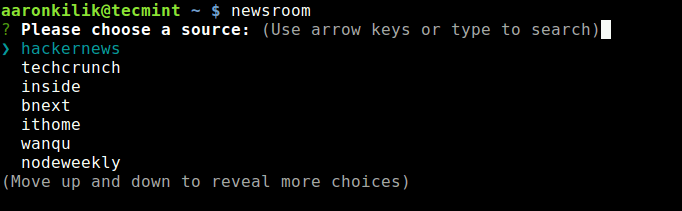
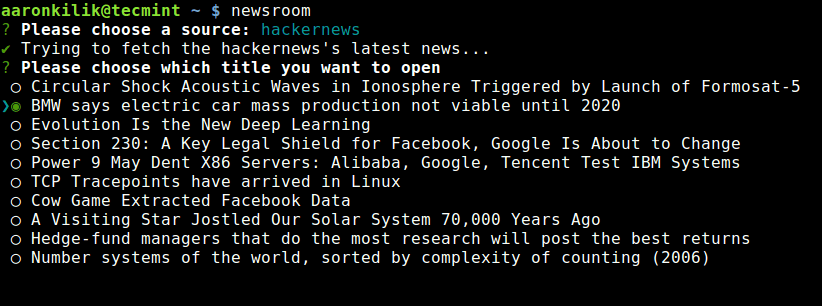
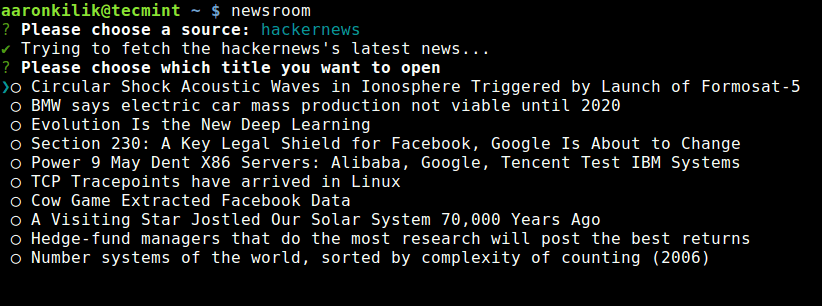
Newsroom is a free open-source, simple, modern and cross-platform command-line utility to get your favorite news, developed using NodeJS. It runs on Linux systems, Mac OSX as well as Windows.

Newsroom Commandline RSS Reader

Newsroom Commandline RSS Reader

14. Newsboat

Newsboat (a fork of Newsbeuter) is also a free, open source and simple terminal-based RSS/Atom feed reader. It only runs on Unix-like systems such as GNU/Linux, FreeBSD and MacOS.

Newsboat Commandline RSS Reader

Newsboat Commandline RSS Reader

Summary

RSS is a standardized format used to deliver regularly changing content on the web. In this article, we have explained 14 RSS Feed readers for Linux systems. If we have missed any application in the list above, let us know via the feedback form below.

Source

WP2Social Auto Publish Powered By : XYZScripts.com