By Jack M. Germain
Oct 25, 2018 11:00 AM PT

Linux apps now can run in a Chromebook’s Chrome OS environment. However, the process can be tricky, and it depends on your hardware’s design and Google’s whims.
It is somewhat similar to running Android apps on your Chromebook, but the Linux connection is far less forgiving. If it works in your Chromebook’s flavor, though, the computer becomes much more useful with more flexible options.
Still, running Linux apps on a Chromebook will not replace the Chrome OS. The apps run in an isolated virtual machine without a Linux desktop.
If you are not familiar with any Linux distribution, your only learning curve involves getting familiar with a new set of computing tools. That experience can pique interest in a full Linux setup on a non-Chromebook device.
Why tool around with adding Linux apps to the Chromebook world? One reason is that now you can. That response may only suit Linux geeks and software devs looking to consolidate their work platform, though.
Want a better reason? For typical Chromebook users, Linux apps bring a warehouse of software not otherwise available to Chromebooks. Similarly, the Google Play Store brought a collection of apps to the Chromebook that had been beyond the limitations of the Chrome Web Store for Android phone and tablet users. The Debian Linux repository expands the software library even more on the Chromebook.
Curiosity Trumps Complacency
I have used a series of Chromebooks to supplement my Linux computers over the years. When Android apps moved to the Chromebook, I bought a current model that supported the Play Store. Unfortunately, that Asus C302CA wimped out as a Linux apps machine. See more below on why that Chromebook and others fail the Linux apps migration.
I replaced that Asus Chromebook with a newer model rated to run Linux apps, the Asus C213SA. It came preconfigured to run both Android and Linux apps. The Play Store was already enabled and installed. The Linux Beta feature was installed but not activated. Completing that setup took a few steps and about 15 minutes.
As I will run down shortly, these two relatively recent Chromebooks have a world of differences under the hood. They both run the same qualifying Chrome OS version. They have different classes of Intel processors. Google engineers blessed one but not the other with the ability to run the new Linux apps technology.
The process of running Linux apps on a Chromebook requires loading the essential Linux packages to run a terminal window in a sandbox environment within the browser User Interface. You then use APT commands to get and install desired Linux applications.
Work in Progress
The original concept for the Chromebook was to tap into the Google Chrome browser to handle everyday computing chores that most users did in a browser on a full-size computer anyway. You know — tasks that involve Web surfing, emails, basic banking, reading and writing online.
The software tools were built in, so massive onboard storage was not needed. The always-connected Chromebook was tethered to your Google Drive account.
Chromebooks ran the Chrome browser as a desktop interface. Google’s software infrastructure was built around Google Docks and Chrome apps from the Web Store.
Then came integration of Android Apps running within the Chromebook environment. That let you run Android apps in a Chrome browser tab or in a separate window. The latter option gives the illusion of being a separate app window, as on an Android phone or tablet.
Not all Chromebooks can run Android apps, though. The older the model, the less likely it has Android support. Now that same concept is integrating Linux applications within the Chromebook environment. Linux apps run as a standalone program in a special Linux container on top of the Chrome OS.
Long-Term Impact
You have two options in managing Linux software on a Chromebook. One is to use the APT command line statements within a terminal window to get and install/uninstall each Linux application. The other strategy is to use APT to install access to the Debian software repository and use a graphical package manager tool to install and remove Linux applications.
This process forces the Chromebook to do something it was not designed to handle. It must store the Linux infrastructure and each installed application locally. That added storage impact will do one of two things: It will force devs to cram more storage capacity into the lightly resourced Chromebooks; or it will force users to limit the extent of software downloading.
Either way, the ability to run Linux apps on a qualified Chromebook expands the computer’s functionality. In my case, it lets me use Linux productivity tools on a Chromebook. It lets me use one computer instead of traveling with two.
Refining Progress
Running Linux apps on qualified Chromebooks is not Google’s first attempt to piggyback the Linux OS onto Chromebook hardware. Earlier attempts were clunkier and taking advantage of them required some advanced Linux skills.
Chrome OS is a Linux variant. Earlier attempts involved using
Crouton to install the Linux OS on top of the Chrome OS environment. Google employee Dave Schneider developed the Crouton OS. Crouton overlays a Linux desktop on top of the Chrome OS. Crouton runs in a chroot container.
Another method is to replace the Chrome OS with the
GalliumOS, a Chromebook-specific Linux variant. To do this, you must first switch the Chromebook to Developer Mode and enable legacy boot mode.
Like other Linux distros, you download the ISO variant specific to your Chromebook and create a bootable image on a USB drive. You can run a live session from the USB drive and then install the Gallium OS on the Chromebook. GalliumOS is based on Xubuntu, which uses the lightweight Xfce desktop environment.
What Crostini Does
The Crostini Project is the current phase of Google’s plan to meld Linux apps onto the Chrome OS platform. The Crostini technology installs a base level of Linux to run KVM, Linux’s built-in virtual machine (VM).
Then Crostini starts and runs LXC containers. It runs enough of Debian Linux to support a running Linux app in each container.
The Crostini technology lets compatible Chromebooks run a completely integrated Linux session in a VM that lets a Linux app run. This latest solution does not require Crouton and Developer Mode. However, the particular Chromebook getting the Linux Apps installation might need to change modes to either Beta or Developer channels.
With the help of Crostini, the Chrome OS creates an icon launcher in the menu. You launch the Linux apps just like any Chromebook or Android app by clicking on the launch icon. Or you enter the run command in the Linux terminal.
Making It Work
In an ideal computing world, Google would push the necessary Chrome OS updates so all compatible units would set up Linux apps installation the same way. Google is not a perfect computing world, but the Chromebook’s growing flexibility makes up for that imperfection.
Not all Chromebooks are compatible with running Linux apps using Crostini. Instead, there is a minimal setup for newer Chromebooks that come with Linux Beta preinstalled. Other Chromebook models that have the required innards and the Google blessing have a slightly more involved installation and setup process to apply.
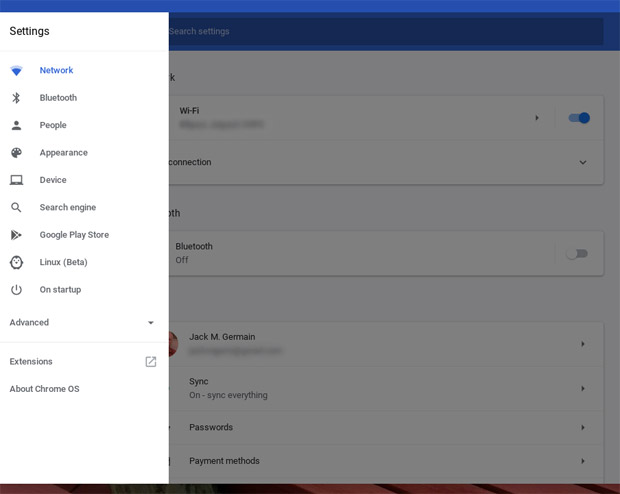
The ultimate installation goal is to get the Linux (Beta) entry listed on the Chrome OS settings panel.
What You Need
Installing Linux apps requires your Chromebook to be running Chrome OS 69 or later. To check, do this:
- Click your profile picture in the lower-right corner.
- Click the Settings icon.
- Click the Hamburger icon in the upper-left corner.
- Click “About Chrome OS.”
- Click “Check for updates.”
Even with Chrome OS 69 or newer installed, other factors determine your Chromebook’s suitability to run Linux apps. For example, Linux runs on Chromebooks with an operating system based on the Linux 4.4 kernel. Some older Chromebooks running Linux 4.14 will be retrofitted with Crostini support. Others will not.
According to Google’s
documentation notes, any Chromebook outfitted with the Intel Bay Trail Atom processors will not support Linux apps. That seems to be the reason for my Asus C302CA failing the Linux suitability test.
Other bugaboos include 32-bit ARM CPUs. Also a negative factor are firmware issues, limited storage and RAM capacities.
Overall, few current Chromebooks have the basic hardware needed: Crostini, kernel 3.18 based on the Glados baseboard with the Skylake SoC, and an adequate processor. Those basic system requirements could change as Google engineers fine-tune the Crostini technology. Of course, newer Chromebook models no doubt will become available as the Crostini Project moves beyond it current beta phase.
Here is a
list of Chromebooks that are expected to receive upgrades OTA to support Linux Apps eventually.
Ultimate Compatibility Test
Even if your Chromebook seems to have all of the required hardware and lets you activate Crostini support, Google specifically must enable one critical piece of technology to let you run Linux. This is the major rub with the process of putting Linux apps on earlier model Chromebooks.
Google also must have enabled the Linux VM for your hardware. Find out if your Chromebook has been blessed by the Google gods after completing the channel change and flag activation: Open Chrome OS’ built-in shell, crosh; then run this shell command —
vmc start termina
If you get a message saying that vmc is not available, your quest to put Linux apps on that particular Chromebook is over.
You can skip the crosh test if you do not see “Linux (Beta)” listed on the Chrome OS Settings panel (chrome://settings). Linux will not run on your Chromebook, at least not until Google pushes an update to it. If you do see “Linux Beta” listed below the Google Play Store in the settings panel, click on the label to enable the rest of the process.
Getting Started
Some models that can run Crostini include newer Intel-powered Chromebooks from Acer, Asus, Dell, HP, Lenovo and Samsung. Check this source for a crowdsourced
list of supported Chromebooks.
If your Chromebook supports Crostini and is new enough, Crostini support already may be installed in the stable channel by default. In that case, change the flag in the Chrome OS [chrome://flags] on the Chrome browser’s address line to enable Crostini.
Otherwise, you will have to apply several steps to get all of the working pieces on the Chromebook. This can include switching your Chromebook from the stable update channel to the developer channel or the Beta channel, depending on the hardware and the make/model. You also will have to download special software using commands entered into a terminal window.
If you have a recent Chromebook model with built-in Linux apps support, you will see “Linux Beta” listed in the left column of the Settings Panel [chrome://settings]. All you have to do is click on the label and follow the prompts to enable the Linux apps functionality.
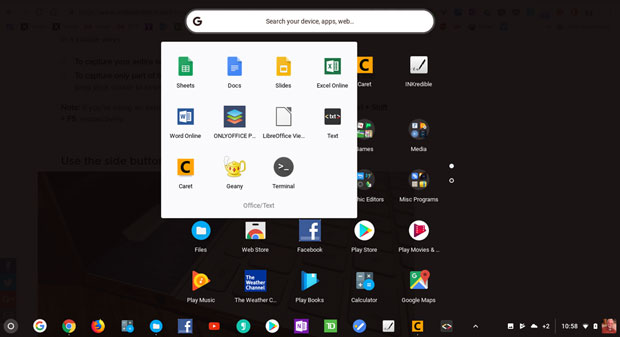
The Linux terminal and Geany Linux app display in the Chrome OS menu along with Chrome and Android apps.
Making It Linux-Ready
If your Chromebook is not already set with Linux enabled, first, switch it to developer mode and then enable the Crostini flag. Here is how to do each step.
Do this to change Chromebook modes:
- Sign in to your Chromebook with the owner account.
- Click your account photo.
- Click Settings.
- At the top left, click Menu.
- Scroll down and click “About Chrome OS.”
- Click “Detailed build information.”
Next to “Channel” click the Change channel button and select either Beta or Developer. Then click the Change Channel button. Depending on your Chromebook model, either one could be what your hardware needs. I suggest starting with Developer channel. If that does not install the Linux Beta software, redo the process in the Beta channel.
When the channel change operation is completed, click the “Restart your Chromebook” button.
Caution: You can reverse this process by changing back to the stable channel at any time. Google servers automatically will force a power wash when you restart your Chromebook to return to the stable channel. When you sign into your Chromebook, you will have to do an initial setup just as you did when unboxing it, but Google will restore most if not all of your previous software and settings. Make sure you backed up any documents stored locally, however.
Do this to set the Crostini flag to enabled:
- Click on the address bar.
- Type chrome://flags and press Enter.
- Press Ctrl + F on your keyboard.
- Scroll down the list to find “Crostini.” Type Crostini in the search bar. Select Enable.
- Click Restart at the bottom of the screen.
Final Steps
At this current phase of Beta Linux on Chromebooks, once you get to seeing “Linux Beta” on the Chrome Settings Panel, you must download the final pieces manually to get and run Linux apps. Open the Chrome settings panel, click the Hamburger icon in the upper-left corner, click Linux (Beta) in the menu. Then click “Turn on.”
The Chromebook will download the files it needs. When that process is finished, click the white circle in the lower-left corner to open the app drawer. You will see the Linux Terminal icon. Click it.
Type in the command window and then press the Enter key to get a list of Linux components that need updating:
sudo APT update
Then type in the command window and press the Enter key to upgrade all the components:
sudo APT upgrade
When that’s finished, type y to remove excess files. Press Enter.
Now you are ready to download the Linux apps to make using your Chromebook more productive and more flexible. At least for now, you must open the Linux terminal window and enter APT commands to install or remove your selected Linux apps.
This is a simple process. If you have any uncertainty about the commands, check out this helpful
user guide.
Using It
This article serves as a guide for the current state of running Linux apps on compatible Chromebooks. It is not my intent to review specific Chromebooks. That said, I have been very pleased with my latest Asus Chromebook.
The only thing lacking in the 11.6-inch Asus C213SA is a backlit keyboard. The Asus C302CA has both a backlit keyboard and a one-inch larger screen. They both have touchscreens that swivel into tablet format and run Android apps. Losing a tiny bit of screen size and a backlit keyboard in exchange for running Linux apps is a satisfying trade-off.
My original plan was to install a few essential tools so I could work with the same productivity apps on the Chromebook that I use on my desktop and laptop gear. I was using Android text editor Caret for much of my note-taking and review article drafts. It lacks a spellchecker and split-screen feature. However, it easily accesses my cloud storage service and has a tabbed structure, making it a close replacement for my Linux IDE and text editor app, Geany.
I installed Geany as the first Linux app test on the Asus C213SA Chromebook. It worked like a charm. Its on-screen appearance and performance on the Chromebook was nearly identical to what I experienced for years on my Linux computers.
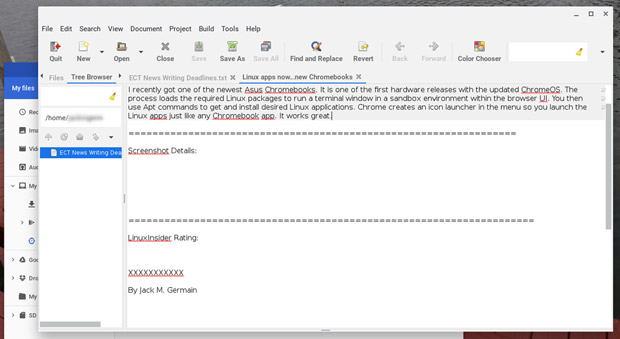
Proof positive! The Linux IDE text editor Geany shares screen space with the Chrome OS on a compatible Chromebook.
The Linux Beta feature on Chromebooks currently has a Linux files folder that appears in the Chrome OS Files Manager directory. Any document file that you want to access with a Linux app must be located in this Linux files folder. That means downloading or copying files from cloud storage or local Chromebook folders into the Linux files folder.
It is a hassle to do that and then copy the newer files back to their regular location in order to sync them with other Chromebook and Android apps or cloud storage. If you do not have to access documents from Linux apps on the Chromebook, your usage routine will be less complicated than mine.
Bottom Line
The Linux apps’ performance on Chromebook in its current Beta phase seems to be much more reliable and stable than the Android apps integration initially was. Linux apps on Chromebook will get even better as Crostini gets more developed.
Chrome OS 71 brings considerably more improvements, according to various reports. One of those changes will let the Linux virtual machine be visible in Chrome OS’ Task Manager.
Another expected improvement is the ability to shut down the Linux virtual machine easily.
An even better expected improvement is folder-sharing between the Linux VM and Chrome OS. That should resolve the inconvenience of the isolated Linux files folder.
Is it justifiable to get a new “qualified” Chromebook in order to run Linux apps on it? If you are primarily a Linux distro user and have settled for using a Linux-less Chromebook as a companion portable computer, I can only say, “Go for it!”
I do not think you will regret the splurge.
Want to Suggest a Review?
Is there a Linux software application or distro you’d like to suggest for review? Something you love or would like to get to know?
Please
email your ideas to me, and I’ll consider them for a future Linux Picks and Pans column.
And use the Reader Comments feature below to provide your input!

 Jack M. Germain has been an ECT News Network reporter since 2003. His main areas of focus are enterprise IT, Linux and open source technologies. He has written numerous reviews of Linux distros and other open source software.
Email Jack.
Source


 The EdgeX Foundry IoT middleware project announced nine new members including Intel, and launched an Ubuntu-driven development kit based on an octa-core Artik 710 module.